Introduction to PDF Cropping
PDF files frequently contain extraneous margins, blank areas, or unnecessary annotations that detract from the content's clarity. Cropping these PDFs is essential for creating cleaner, more focused documents. Users can highlight key content by removing distractions that come with scanned documents, presentations, or reports.
In this guide, you'll develop a browser-based PDF cropping tool using JavaScript, enabling users to upload PDFs, visually select crop areas, and ultimately download edited files—all without needing a backend server. The application will operate entirely in the browser, enhancing privacy and efficiency.
Understanding the Benefits of PDF Cropping
The utility of PDF cropping extends to a wide variety of document types: scanned materials, invoices, reports, contracts, forms, and more. Often, PDFs contain excessive whitespace or unwanted scanner artifacts at their edges. By cropping these documents, businesses can create more professional and digestible versions before sharing them.
Students too can benefit, trimming lecture notes or scanned resources to concentrate on crucial information. Designers regularly crop exported PDFs to eliminate unnecessary margins before printing. Ultimately, cropping produces documents that are easier to read and navigate.
How the Cropping Process Works
A PDF crop tool loads document pages in the user's browser, allowing them to define a rectangle that specifies the desired crop area. The tool applies these crop coordinates and generates a new PDF, ensuring that sensitive data remains local to the user's device, enhancing security.
Setting Up Your Project
The setup for this project is straightforward. You'll need an HTML file, a JavaScript file, and a library for PDF processing—it’s that simple. Since everything operates on the client side, there's no need for a backend service or database.
Choosing a PDF Processing Library
For this project, we’ll utilize PDF-lib, a versatile library for managing PDF files. It allows you to manipulate PDF documents directly with JavaScript.
To integrate the library, include it in your HTML using this CDN link:
<script src="https://unpkg.com/pdf-lib/dist/pdf-lib.min.js"></script>Developing the User Upload Interface
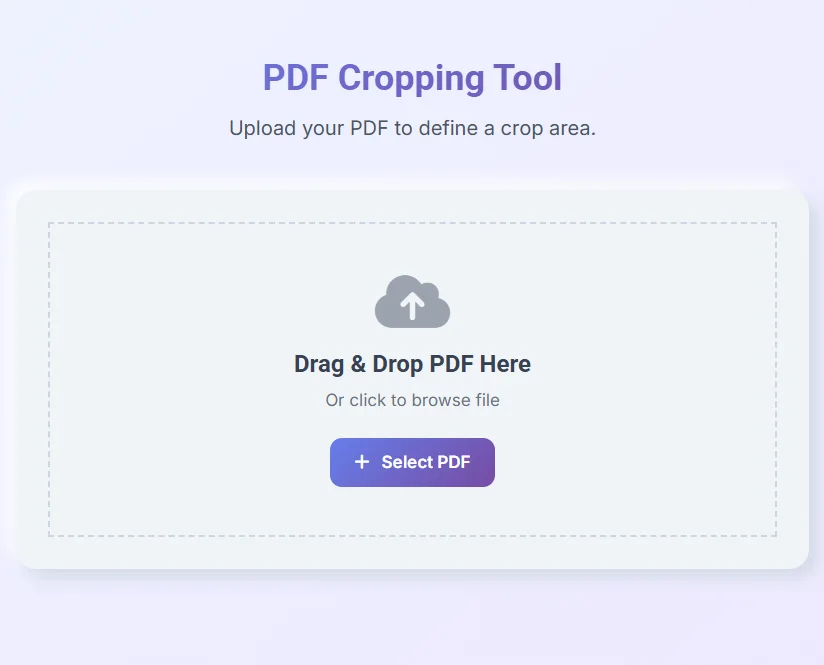
Start by allowing users to upload their PDF documents via a user-friendly interface. A simple file input element suffices:
<input type="file" id="pdfInput" accept=".pdf">JavaScript can be employed to handle file selection. Here’s a required event listener:
document.getElementById("pdfInput").addEventListener("change", (event) => {
const file = event.target.files[0];
console.log(file.name);
});
Previewing the Uploaded PDF
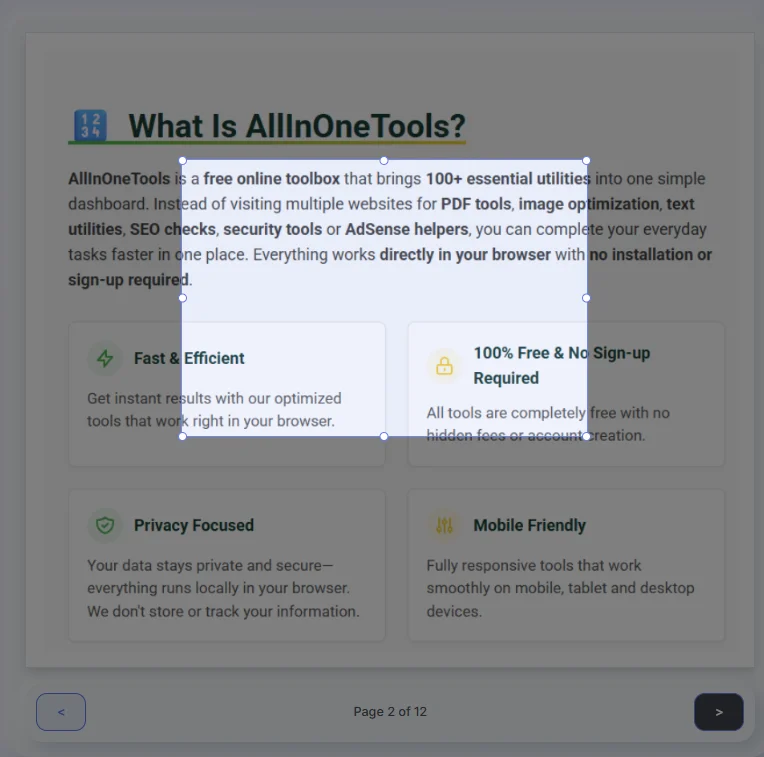
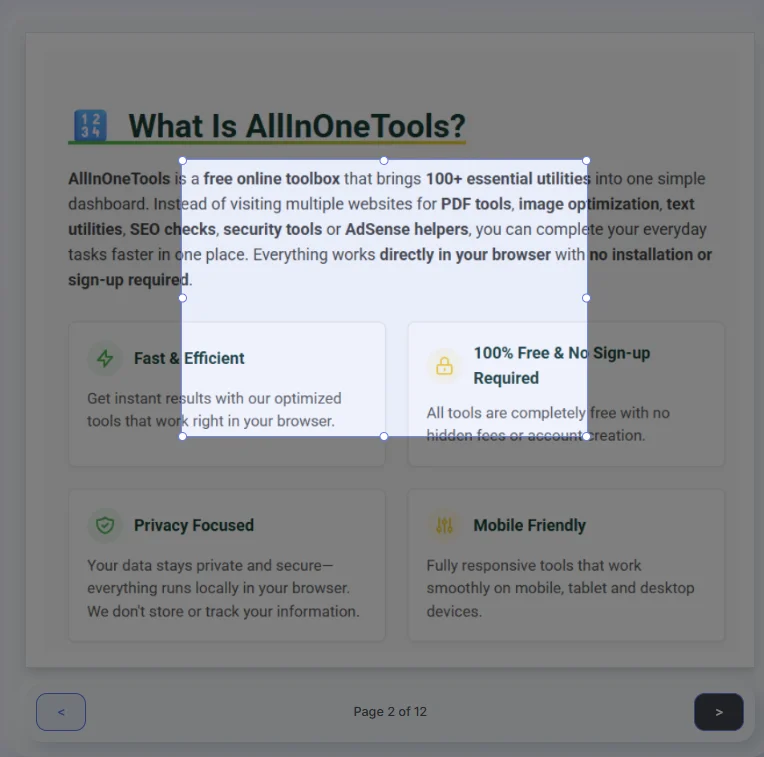
After a PDF is uploaded, users should be able to view its pages instantly in the browser. A page navigation system should be included, facilitating easy movement between pages before cropping occurs.
A default crop selection area allows users to make quick adjustments to the visual content, ensuring preliminary selections match their expectations:
Fine-Tuning Crop Settings
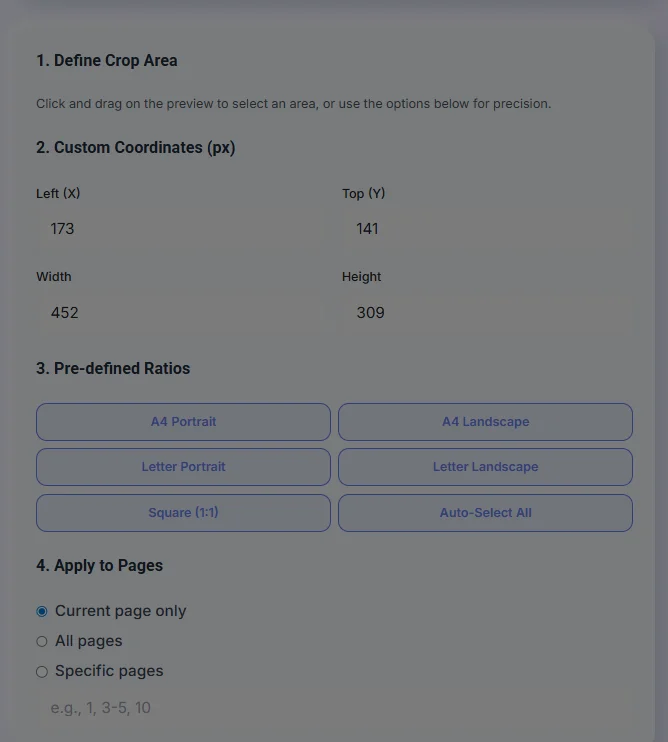
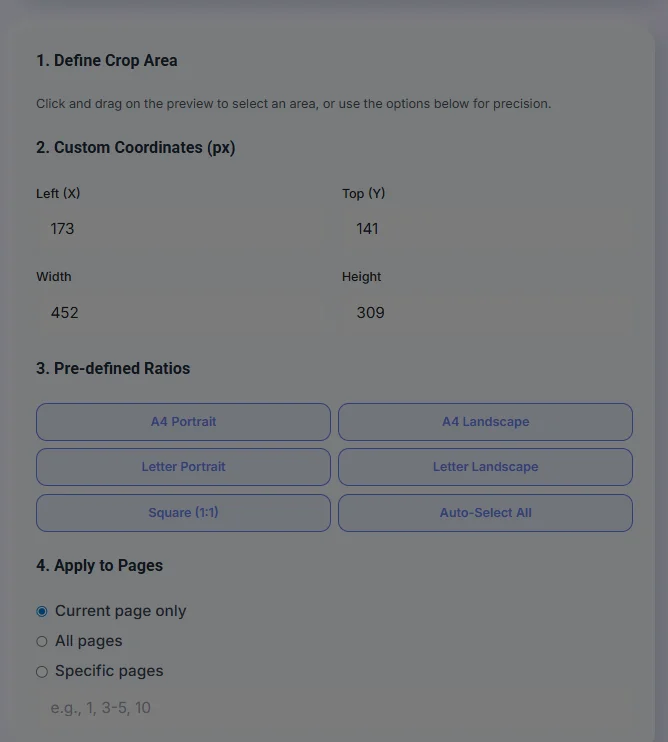
Precision is essential in crop settings. Users can manually fine-tune crop coordinates, select predefined ratios, and determine which specific pages to crop. This flexibility is vital for varied types of documents which might require different adjustments.
The crop settings area in your application should enable users to:
- Adjust crop position and dimensions
- Choose set crop ratios
- Select current pages or specific page ranges for cropping
Capturing Crop Coordinates
When users drag to select a crop area, the application needs to record these dimensions:
const cropArea = {
x: 173,
y: 141,
width: 452,
height: 309
};
Utilizing Custom and Predefined Coordinates
For a more tailored approach, users can modify crop parameters. For instance:
const left = parseInt(document.getElementById("cropX").value);
const top = parseInt(document.getElementById("cropY").value);
const width = parseInt(document.getElementById("cropWidth").value);
const height = parseInt(document.getElementById("cropHeight").value);
Supporting predefined ratios helps streamline the process for users who repeat similar tasks. For example:
function applyA4Portrait() {
cropArea = {
x: 0,
y: 0,
width: 595,
height: 842
};
}
Selecting Pages for Cropping
The tool should allow users to decide whether to crop just the current page, all pages, or specific pages. Here’s how these modes can be defined:
const applyMode = "current";const applyMode = "all";const applyMode = "specific"; const pageRange = "1,3-5,10";Executing the Crop Operation
With all settings configured, the crop operation can be applied:
page.setCropBox(x, y, width, height);Generating the Final Cropped PDF
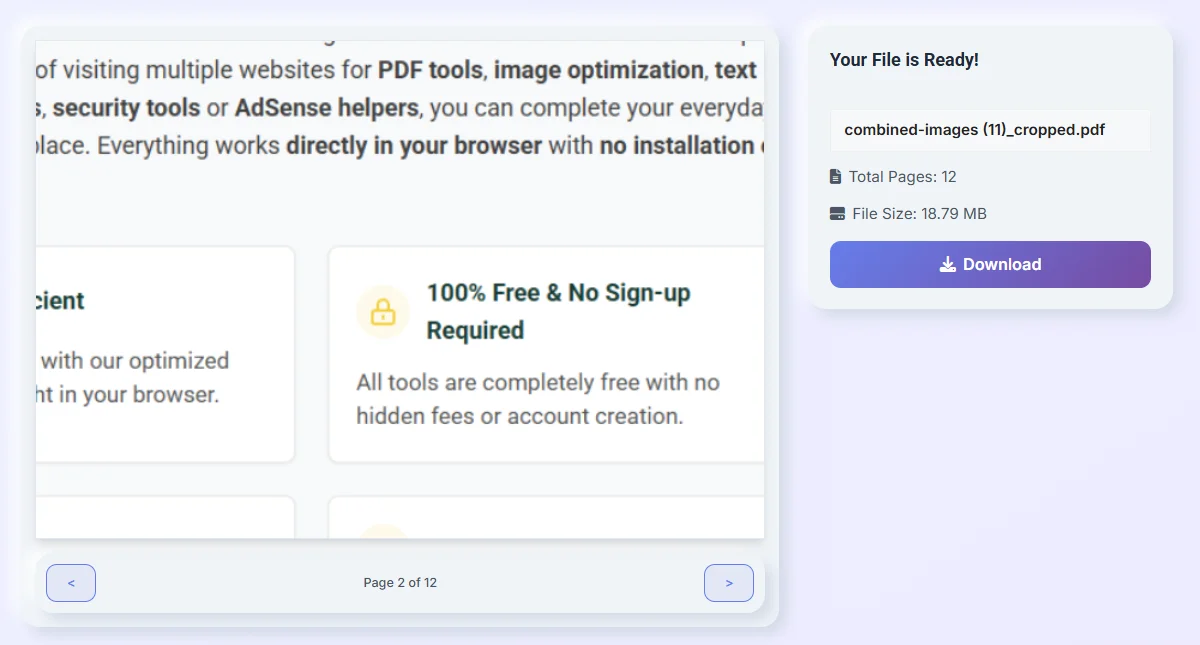
After the crop operation, the browser can produce a new PDF file that only holds the selected areas:
const pdfBytes = await pdfDoc.save();Users can preview the outputs and confirm their changes before downloading:
Real-World Applications of PDF Cropping
The practicality of a PDF cropping tool extends well beyond aesthetics; it facilitates professional workflows across numerous industries. For businesses processing multiple PDF formats, such as shipping labels and invoices, the time saved by cropping multiple documents simultaneously can be substantial.
Automatic cropping can simplify document management processes for:
- E-commerce shipping labels
- Warehouse documentation
- Contracts and agreements
- Research submissions
- Internal documentation and manuals
Step-by-Step Workflow Demo
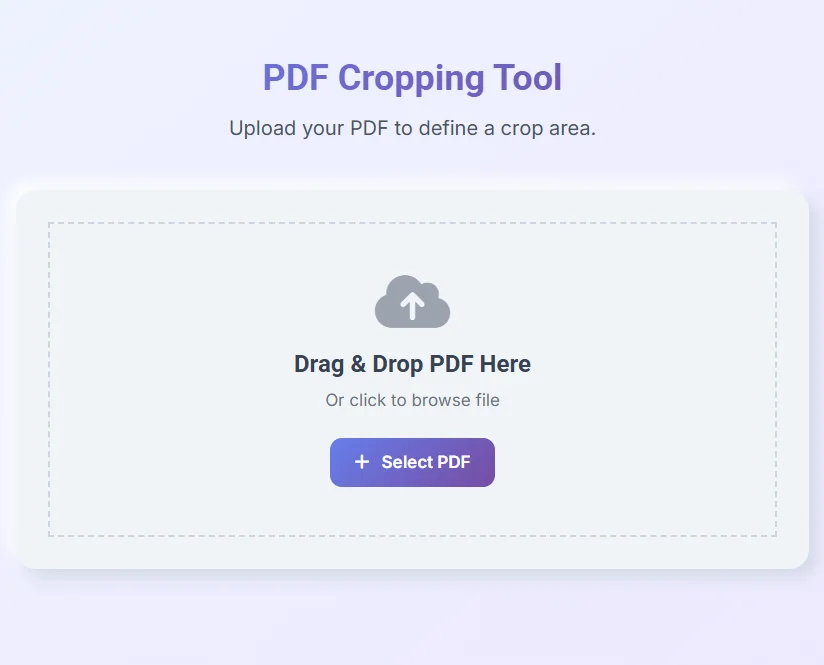
1. Uploading a PDF
Users begin by simply dragging and dropping or selecting a PDF file for cropping:
2. Previewing the Document
Users can navigate through pages once the PDF is uploaded:
3. Configuring Crop Settings
Users select their crop parameters before confirming the crop:
4. Applying the Crop
Once adjustments are completed, a click of the button applies the crop:
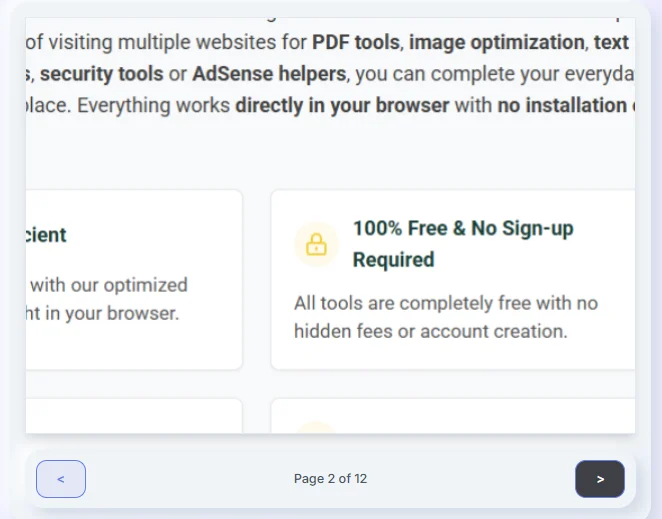
5. Previewing the Cropped Document
Users can review the finished document for any necessary adjustments:
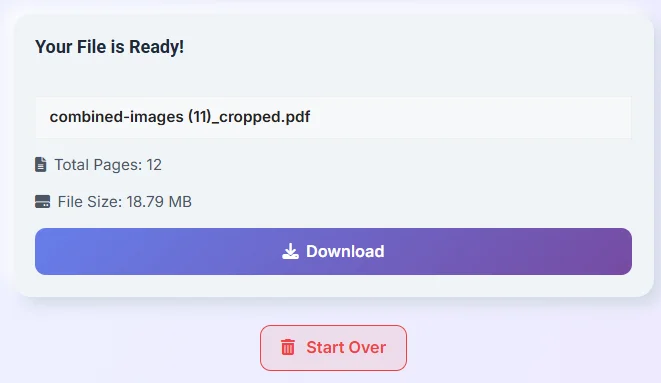
6. Downloading the Result
Finally, users can download the finalized PDF document:
Key Considerations for Optimal Use
For efficient operation, validate file uploads and ensure only compatible PDFs are processed. Allow users to preview before finalizing their edits to rectify any potential errors early in the process.
Avoiding Common Pitfalls
One common mistake is inadequate dimension settings that could lead to critical content being cropped out. Always ensure users have defined a crop area before proceeding with the operations.
Final Thoughts
You've built a browser-based PDF cropping tool using JavaScript, allowing users to manage their PDF files conveniently and privately. Remember, the flexibility of modern browsers means more possibilities for future extensions, such as rotating pages or adding annotations. Moving ahead, this functionality paves the way for even more sophisticated PDF editing tasks.